How to sign a PDF on iPhone and Android
Sign a PDF on iPhone with Preview or the Files app, and on Android with Google Drive or Samsung Notes. Plus when a signature drawn on a phone counts.
Contents8 sections
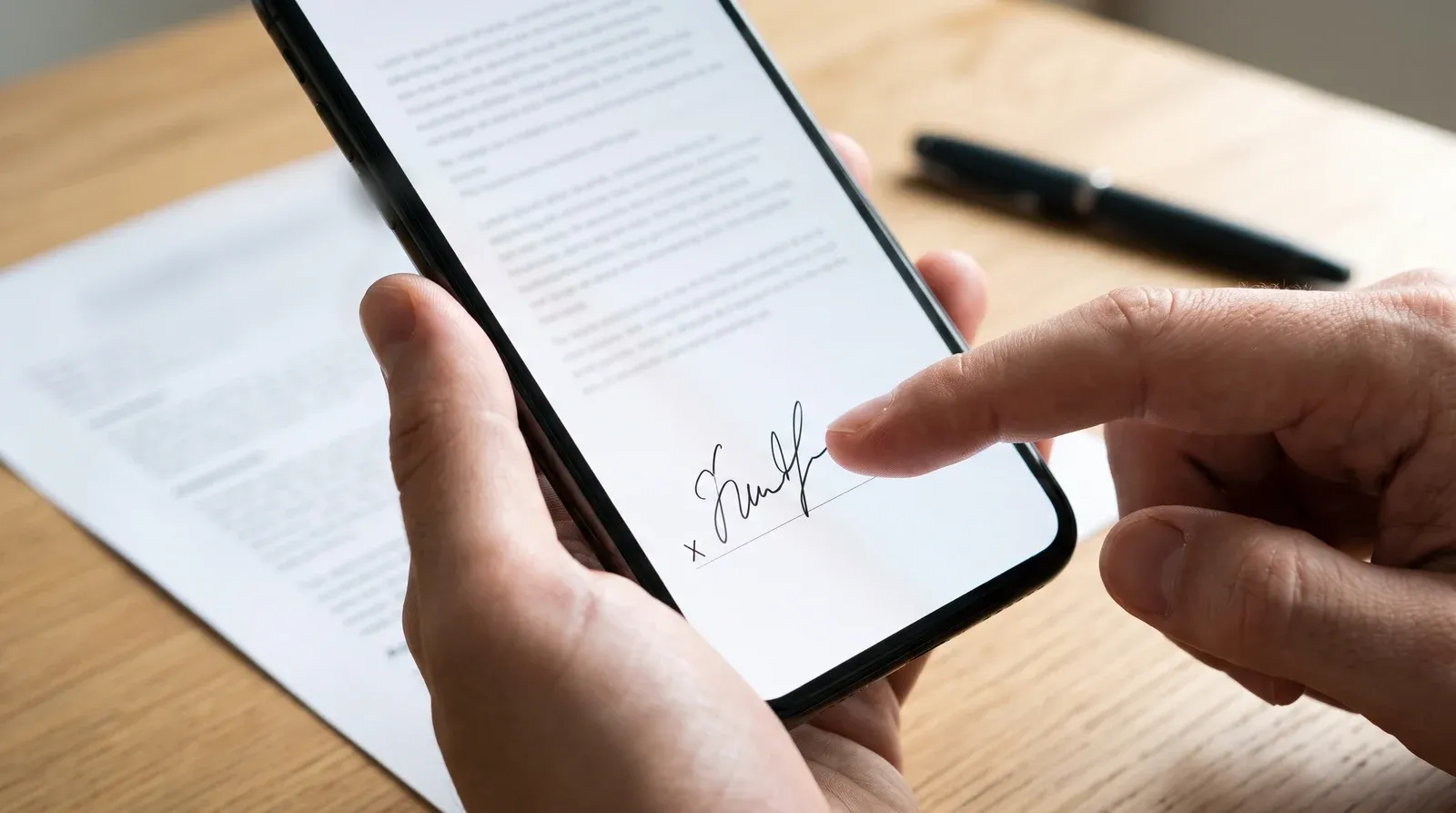
On iPhone, open the PDF in Preview or the Files app, tap Add, then Add Signature, sign with your finger and drag it into place. Android has no built-in signature button, but you can draw one with the pen in Google Drive or Samsung Notes. Siftlo signs on both, and finds the forms waiting for you.
How do I sign a PDF on iPhone?
With Preview or the Files app. Both are built in, so there’s nothing to install.
Preview came to the iPhone with iOS 26. Apple’s Preview form guide gives these steps:
- Open the PDF in Preview. A PDF attached to an email opens there when you tap it in Mail.
- Tap the Form Filling button.
- Tap a field and type, or tap the AutoFill suggestion.
- To sign, tap the Add button, then add your signature.
If the form has a proper signature field, Apple’s Preview guide says you can tap it and sign with your finger.
The Files app works on older iPhones too. Apple’s guide to forms and signatures reads the same for iOS 18 and iOS 26:
- Open the PDF. If asked, open it in Files and tap Save.
- Tap the AutoFill button, then tap a blank field to type in it.
- Tap the Add button, then Add Signature.
- Sign your name with your finger and tap Done.
- Drag the signature where it belongs, then share the PDF with Mail, Messages or AirDrop.
The iPhone saves your signature for next time, so the second form takes seconds. Turn the phone sideways while you sign for a bigger space.
Can I sign a PDF attachment without leaving Mail?
Yes. Apple’s Mail guide says to tap the attachment, then the Markup button. Tap Add, then Add Signature, and place it. When you finish, Mail lets you reply to the sender with the signed copy, start a new message, or save it to Files.
This is the quickest route for the common case: someone emails a form and wants it back signed. You never save a stray copy to your phone.
How do I sign a PDF on Android?
Android has no signature button of its own. What it has is a pen. You can draw your signature with your finger, which is how plenty of people sign anyway.
Google Drive is on most Android phones. Google’s annotation guide says to open the PDF in Drive and tap the annotate button. Pick the pen, sign in the space on the page, then save. Google gives you the choice: save over the original, or make a new copy with a new name. Pick the copy.
For a form with typed fields, Drive also has Form Filling. Google’s form guide says to tap Edit, then Form Filling, fill it in, and tap Save. Not every PDF has fields Drive can fill; if the option is missing, use the pen.
Files by Google has the same kind of pen. Its help page says to open the PDF and tap Edit, and that saving uploads a copy to Google Drive while “the original copy remains unmarked”.
Samsung phones can do it in Samsung Notes. Samsung’s Notes guide says to touch and hold Create note, then Import PDF, add your drawing, and export with Save as file, then PDF file.
Which way should I use?
It depends on whether you want a real signature feature or just a pen.
| Phone | App | Signature feature | Saved for next time | Where the signed file goes |
|---|---|---|---|---|
| iPhone (iOS 26 and later) | Preview | Yes, Add Signature | Yes | Saved in Preview |
| iPhone | Files | Yes, Add Signature | Yes | Shared by Mail, Messages or AirDrop |
| iPhone | Yes, through Markup | Yes | Sent back, or saved to Files | |
| Android | Google Drive | Pen only | No | The original, or a new copy |
| Android | Files by Google | Pen only | No | A copy in Google Drive |
| Samsung | Samsung Notes | Pen only | No | A PDF you export |
| iPhone and Android | Siftlo | Yes, fills every place at once | Yes | A signed copy beside the original |
The pen tools work, but you redraw your signature every time and it can land at any size. That’s fine for one form. For a stack of them, a tool that stores your signature saves the fiddling.
Is a signature drawn on a phone legally binding?
For most everyday paperwork, yes. A tenancy renewal, a school trip form or a delivery note can all be signed this way.
- UK: the retained eIDAS rules say an electronic signature can’t be refused legal effect just because it’s electronic (Article 25). The Law Commission’s 2019 report says one can be used to execute a document, including a deed, as long as the signer means to sign it.
- US: the ESIGN Act says a signature can’t be denied legal effect “solely because it is in electronic form” (15 U.S.C. 7001).
Some documents still need more. In England and Wales a will must be signed in front of two witnesses (GOV.UK). A deed needs a witness who is physically there, and HM Land Registry won’t accept a typed or scanned signature on a property transfer. The US Act leaves out wills, family law matters and court documents. When in doubt, ask whoever sent you the form.
This is general information, not legal advice.
How does Siftlo make signing quicker?
The phone’s own tools sign one page at a time, and only once you’ve found the PDF. Siftlo’s Sign tool, on iPhone and Android, starts a step earlier.
It finds what needs signing. Siftlo lists the PDFs on your phone with an empty signature line or an unsigned form field. It reads them on the phone, so it works offline and needs no account. Any other PDF can be picked by hand.
It fills every place at once. Draw your signature once and Siftlo places it, with your initials, the date and your name, everywhere the document asks, across every page. You only adjust: drag any of them to move it, or pull a corner to resize it.
It never overwrites. The signed copy is saved next to the original, and the signing shows in Activity, where you can undo it.
The marks stay put. Siftlo flattens them into the page, so nobody can drag your signature off later.
Three signed documents a month are free, and a PDF counts once however many places it has. Siftlo Plus has no monthly limit. One honest limit: it’s a signature you draw, not a certified digital one, so anything that needs a certificate-based signature should go through a service built for that.
How do I change or delete my saved signature?
On iPhone, start as if you were signing: tap Markup, then Add, then Add Signature. Apple’s signature guide says to tap Add or Remove Signature, then the delete button next to the one you want gone. Draw a new one the same way.
Signed forms pile up quickly, and they’re easy to lose in Downloads. Our guide to scanning documents with your iPhone covers giving paperwork a proper home, and searching inside PDFs and scans shows how to find one again by what it says.
Questions people ask
Can I sign with my initials instead of my full signature on iPhone?
Yes. Apple says you can create several signatures, such as a nickname or your initials, and label each one. They all appear when you tap Add Signature, so pick the one the form asks for.
Does Google's eSignature work on a phone?
Signing does. Google says the person signing can draw with a mouse, trackpad or touchscreen. Sending a request starts on a computer at drive.google.com, and only some Google Workspace plans can send one, including Workspace Individual and Business Standard.
Read next
 Documents
How to search inside PDFs and scans on your phone
 Documents
How to scan documents with your iPhone, and find them again
 Photo organisation
How to organise photos on iPhone: albums, folders and people

How to search inside PDFs and scans on your phone
Why your phone can't find the words in a scanned PDF, and how to search inside PDFs, photos and scans on iPhone and Android, including OCR to make them searchable.

How to scan documents with your iPhone, and find them again
Scan documents with your iPhone using Notes, Files or Preview, save them as PDFs, copy the text and sign forms, then find every scan again. Android too.