How to blur faces in a photo before you share it, on iPhone and Android
Blur faces in photos on iPhone and Android with the tools already on your phone, then share without the location, or blur every face in an album at once.
Contents7 sections
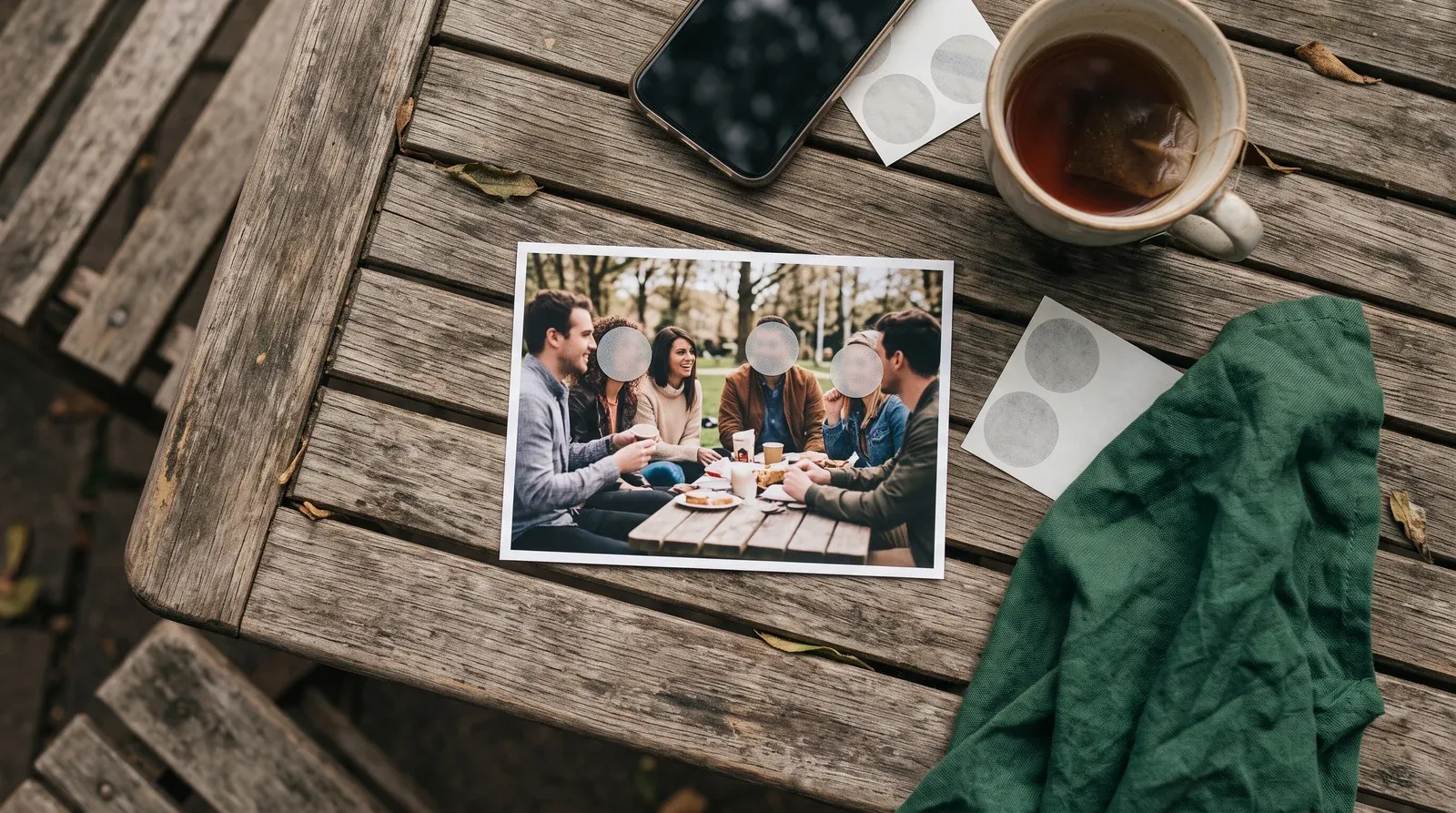
On a recent iPhone, open the photo, tap Edit, then Tools, then Clean Up, and brush over the face. Apple says this may pixelate it. Any iPhone can cover a face with a filled shape in Markup. On Android, Google Photos has a redact pen in Markup, and Samsung's Gallery can draw or put a sticker over it.
How do I blur a face in a photo on iPhone?
There are two built-in ways, and which one you get depends on your iPhone.
On an iPhone with Apple Intelligence, use Clean Up. It’s meant for removing distractions, but Apple’s Photos guide says that if you brush over a person’s face, the face may become blurred with a pixelated effect. That’s the effect you want.
- Open the photo in Photos and tap Edit.
- Tap Tools, then Clean Up.
- Brush over the face. Pinch to zoom if it’s small.
- Tap Done.
Apple’s requirements page lists iPhone 16 models, iPhone 15 Pro and iPhone 15 Pro Max, on iOS 18.1 or later. Clean Up isn’t available in every language or region, and the iPhone guide says usage limits may apply.
On any other iPhone, cover the face instead with Markup. In Photos, open the photo, tap Edit, then the Markup button, then Add and Add Shape. Apple’s Markup guide lets you set the shape’s fill colour and opacity. Set the opacity all the way up so nothing shows through. A sticker over the face works too.
How do I blur faces on Android?
In Google Photos, use the redact pen. Google added it to the Markup tools in September 2026, describing it as a redact pen to blur sensitive info, rolling out on Android globally.
- Open the photo in Google Photos and tap Edit.
- Tap Markup, then choose the redact pen and draw over the face.
- Tap Save, then Save as copy.
Google’s editing help explains the difference. Save changes the original photo. Save as copy makes a new photo with your edits and leaves the original alone. If the pen hasn’t reached your phone yet, the same Markup screen has an ordinary pen for scribbling over a face.
On a Samsung, Samsung’s own guides don’t describe a blur tool in Gallery, so cover the face instead. Samsung’s editing guide puts it under Edit, then the Decorations icon (the smiley face): Draw to paint over the face, or Stickers to place one on top. Then tap More options (the three dots) and Save as copy to keep the original.
Which built-in tool should I use?
| Phone | Tool | Where | Effect |
|---|---|---|---|
| iPhone 15 Pro, iPhone 16 or later | Clean Up | Edit > Tools > Clean Up | Pixelates a face you brush over |
| Any iPhone | Markup | Edit > Markup > Add > Add Shape | Covers the face with a filled shape or sticker |
| Android with Google Photos | Redact pen | Edit > Markup | Blurs what you draw over |
| Samsung Galaxy | Gallery editor | Edit > Decorations > Draw or Stickers | Covers the face |
A solid shape is the safest of these. A light blur can still leave a face recognisable to someone who knows the person, so go heavier than you think you need, and zoom in to check before you share.
Does blurring a face make a photo safe to share?
Not on its own. The photo can still say where it was taken.
On iPhone, Apple’s personal safety guide shows how to share without it. Select the photo, tap Share, then Options, and turn off Location. Your iPhone shows Location Not Included above the Options button.
In Google Photos, a new conversation doesn’t include location details, and each shared album has a Share photo locations switch. Google’s location help adds two warnings: a photo you download and email keeps the location your phone saved, and people can guess the location from landmarks in the picture.
So check the background as well as the faces. House numbers, school logos and street signs give as much away as a face does.
Is there an app that blurs every face at once?
Yes. The built-in tools work one photo, and one brush stroke, at a time. That’s fine for a single picture and slow for a school trip or a party album.
Blur faces in Siftlo, a phone app that sorts, deduplicates and clears photos and files, works on a batch. Choose the photos and it finds the faces on the phone, then tells you how many it found and across how many photos. Tap a face to leave it unblurred, or Select all. Pick a style: Blur, Pixels or Emoji.
Then tap Blur faces, save copies. Blurring is baked into new copies, your originals are untouched, and no photo leaves the phone to do it. If you only need to send them, Or share straight away without saving skips the copies.
Blur faces is part of Siftlo Plus, which starts with a 3-day free trial. Every other tool is on the features page.
Should I keep the original after blurring?
Usually, yes. The original is your memory of the day; the blurred copy is what you share. Every route above can keep both: Save as copy on Android, Reset on iPhone, new copies in Siftlo.
Keeping both costs space, though. If your phone is filling up, our guide to reducing photo size on iPhone shows how to shrink the copies. And if you’d rather find every photo of one person before you share, see how to name the people in your photos once.
Questions people ask
Does blurring a face in Photos change my original?
Not for good. Apple says you can undo Clean Up after saving by opening the photo, tapping Edit, then Tools, then Reset. In Google Photos and Samsung's Gallery, choose Save as copy and the original stays as it was.
Can I remove the location from a photo I've already taken?
On iPhone, yes. Open the photo, tap More, then Adjust Info, Adjust Location and No Location. Google Photos can remove a location it estimated or you added, but Google says it can't remove one your camera added automatically.
Why can't I find Clean Up on my iPhone?
It needs Apple Intelligence. Apple lists iPhone 16 models, iPhone 15 Pro and iPhone 15 Pro Max, on iOS 18.1 or later, and says Clean Up isn't available in every language or region. On other iPhones, use Markup instead.
Read next
 Privacy
What happens when you delete photos on iPhone and Android
 Photo organisation
How to organise photos on iPhone: albums, folders and people
 Documents
How to sign a PDF on iPhone and Android
What happens when you delete photos on iPhone and Android
Deleted photos go to Recently Deleted on iPhone and the bin on Android, and keep using space for 30 days. How to get them back, and how to free the space.
How to organise photos on iPhone: albums, folders and people
How to organise photos on iPhone with albums, folders, pinned collections and search, what Photos sorts for you, and where a photo organiser app saves time.